Qt Creator 2.0 Released Candidate! Creator works hand-in-hand with the Nokia Qt SDK, a release candidate of which has also been released today. One effect is that debugging on the Nokia N8, the first Symbian-based Nokia phone shipping with Qt, does now work. Another focus of this release is the documentation, which has been greatly improved to cover a lot more aspects of Qt Creator and how to develop with it.
But: Qt Quick support is now disabled by default, because Qt 4.7 will not be out by the time Nokia want to release Qt Creator 2.0. This means Qt Creator will come without Qt Quick functionality, even though loading Qt Quick files and projects is still possible. After 2.0 has been released, Nokia will bring back Qt Quick enabled nightly build as soon as possible.
read in more details: Qt Labs Blogs >> Qt Creator 2.0: It's a Release Candidate!
Wednesday, June 9, 2010
Nokia Qt SDK 1.0RC released
Today Nokia have published the Release Candidate for the Nokia Qt SDK 1.0. This is mostly a bug-fix release based on the input have been received. The download location is at Forum Nokia at the following link. Also Nokia have added the Release Candidate of Qt Creator 2.0 into this package.
Source: Qt Labs Blogs >> Nokia Qt SDK 1.0RC released
Source: Qt Labs Blogs >> Nokia Qt SDK 1.0RC released

Tuesday, June 8, 2010
Nokia Releases Qt 4.6.3
Oslo, 08 June 2010 – Nokia today released version 4.6.3 of the Qt cross-platform application and UI framework. Qt 4.6.3 brings bugfixes and optimizations made based on feedback received from Qt users since the release of Qt 4.6.2. Also released is an updated version of the Qt Visual Studio Add-in.
Qt 4.6.3 is available as standalone binary or source packages, or bundled with the latest released version of the Qt Creator IDE (1.3.1) in an updated Qt SDK. All Qt releases are available for download from http://qt.nokia.com/downloads.
For a detailed list of changes introduced in Qt 4.6.3, consult the changes file found in the packages or browse the information on the Qt Developer Zone at http://qt.nokia.com/developer/changes/changes-4.6.3.
Sunday, June 6, 2010
HelloMaemo
Now create a HelloMaemo using Qt Creator:
- In Qt Creator, start a new project; click File -> New File or Project.
- Select Qt Application Project -> Mobile Qt Application

- Enter the name and location of you project.

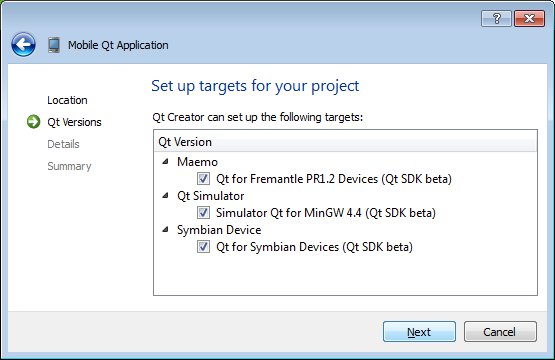
- Accept the default selection on the targets for your project, all selected.

- Review your Class Information, & click Next.

- Click Finish

- Your first code will be generated, and the screen will be switched to Edit mode.
Extend Forms in the Projects pane, double click on mainwindow.ui to switch to Design Mode.


- Drag a Label to the from, adjust the location and size, double click on it and enter the text to be display, "Who are you?". Change the objectName under QObject property on the right to labelWhoAreYou.

- Add a Line Edit with objectName lineEditName, leave the text empty.
- Add a Push Button with objectName pushButtonOK and change the text to "OK".
- Add a Label with objectName labelHello and chnage the text to "I'm Maemo".

- Click on Edit to switch to Edit Mode, double click on mainwindow.h.
Add a slot to mainwindow.h
private slots:
void buttonClicked();

- Double click on mainwindow.cpp to connect with pushButtonOK signal clicked().
connect(ui->pushButtonOK, SIGNAL(clicked()), this, SLOT(buttonClicked()));
- And implement buttonClicked()
void MainWindow::buttonClicked()
{ ui->label_Hello->setText("Hello:" + ui->lineEdit_Name->text());
}

- Save All, and click on the green arrow to Run.

mainwindow.h
mainwindow.cpp
- In Qt Creator, start a new project; click File -> New File or Project.
- Select Qt Application Project -> Mobile Qt Application

- Enter the name and location of you project.

- Accept the default selection on the targets for your project, all selected.
- Review your Class Information, & click Next.

- Click Finish

- Your first code will be generated, and the screen will be switched to Edit mode.
Extend Forms in the Projects pane, double click on mainwindow.ui to switch to Design Mode.


- Drag a Label to the from, adjust the location and size, double click on it and enter the text to be display, "Who are you?". Change the objectName under QObject property on the right to labelWhoAreYou.

- Add a Line Edit with objectName lineEditName, leave the text empty.
- Add a Push Button with objectName pushButtonOK and change the text to "OK".
- Add a Label with objectName labelHello and chnage the text to "I'm Maemo".

- Click on Edit to switch to Edit Mode, double click on mainwindow.h.
Add a slot to mainwindow.h
private slots:
void buttonClicked();

- Double click on mainwindow.cpp to connect with pushButtonOK signal clicked().
connect(ui->pushButtonOK, SIGNAL(clicked()), this, SLOT(buttonClicked()));
- And implement buttonClicked()
void MainWindow::buttonClicked()
{ ui->label_Hello->setText("Hello:" + ui->lineEdit_Name->text());
}

- Save All, and click on the green arrow to Run.

mainwindow.h
#ifndef MAINWINDOW_H
#define MAINWINDOW_H

#include <QMainWindow>

namespace Ui {
  class MainWindow;
}

class MainWindow : public QMainWindow
{
  Q_OBJECT

public:
  explicit MainWindow(QWidget *parent = 0);
  ~MainWindow();

protected:
  void changeEvent(QEvent *e);

private:
  Ui::MainWindow *ui;

private slots:
 void buttonClicked();
};

#endif // MAINWINDOW_H
mainwindow.cpp
#include "mainwindow.h"
#include "ui_mainwindow.h"

MainWindow::MainWindow(QWidget *parent) :
  QMainWindow(parent),
  ui(new Ui::MainWindow)
{
  ui->setupUi(this);
  connect(ui->pushButtonOK, SIGNAL(clicked()), this, SLOT(buttonClicked()));
}

void MainWindow::buttonClicked()
{     ui->labelHello->setText("Hello:" + ui->lineEditName->text());
}

MainWindow::~MainWindow()
{
  delete ui;
}

void MainWindow::changeEvent(QEvent *e)
{
  QMainWindow::changeEvent(e);
  switch (e->type()) {
  case QEvent::LanguageChange:
      ui->retranslateUi(this);
      break;
  default:
      break;
  }
}
Saturday, June 5, 2010
HelloQML
Let start our first QML application HelloQML:
- In Qt Creator, start a new project; click File -> New File or Project.
- Select Qt Quick Project - Qt QML Application, then click OK.

- Enter the name and location of you project.

- It's time to review your project setting, then click Finish.

- Double click on the generated .qml file to involve Qt Quick Design.
(In order to use the Qt Quick Design, you have to enable it; refer to the article Qt Quick Designer.)

- In Qt Quick Design, drag a Text and TextEdit to the panel.
Click to select Text(text1), chang the Text Property to "Who are you?"
Click to select TextEdit(textedit1), clear the Text Properties, and enable Cursor Visible under Text Input property.

- Then click on the Edit button on the left to involve the Editor.
Modify the code of text inside Text to
text: "Hello " + textedit1.text
- Click on the green arrow (Run) on the left to see the result.

- It's the first QML application, HelloQML.

- In Qt Creator, start a new project; click File -> New File or Project.
- Select Qt Quick Project - Qt QML Application, then click OK.

- Enter the name and location of you project.

- It's time to review your project setting, then click Finish.

- Double click on the generated .qml file to involve Qt Quick Design.
(In order to use the Qt Quick Design, you have to enable it; refer to the article Qt Quick Designer.)

- In Qt Quick Design, drag a Text and TextEdit to the panel.
Click to select Text(text1), chang the Text Property to "Who are you?"
Click to select TextEdit(textedit1), clear the Text Properties, and enable Cursor Visible under Text Input property.

- Then click on the Edit button on the left to involve the Editor.
Modify the code of text inside Text to
text: "Hello " + textedit1.text
import Qt 4.6

Rectangle {
  width: 200
  height: 200
  Text {
      x: 66
      y: 127
      text: "Hello " + textedit1.text
  }

  Text {
      id: text1
      x: 66
      y: 61
      width: 80
      height: 20
      text: "Who are you?"
  }

  TextEdit {
      id: textedit1
      x: 66
      y: 83
      width: 80
      height: 20
      text: ""
      cursorVisible: true
  }
}
- Click on the green arrow (Run) on the left to see the result.

- It's the first QML application, HelloQML.

Qt Quick Designer
 The Qt Quick Designer visual editor is provided as an experimental plugin that you must enable to be able to edit QML files in the Design mode.
Enabling the visual editor can negatively affect the overall stability of Qt Creator.
To enable or disable the Qt Quick Designer visual editor, select Help > About Plugins... > Qt Quick > QmlDesigner. You must restart Qt Creator to enable or disable the visual editor.


What's QML and Qt Quick?
QML is an extension to JavaScript, that provides a mechanism to declaratively build an object tree of QML elements. QML improves the integration between JavaScript and Qt's existing QObject based type system, adds support for automatic property bindings and provides network transparency at the language level.
The QML elements are a sophisticated set of graphical and behavioral building blocks. These different elements are combined together in QML documents to build components ranging in complexity from simple buttons and sliders, to complete internet-enabled applications like a Flickr photo browser.
Qt Quick provides a declarative framework for building highly dynamic, custom user interfaces from a rich set of QML elements. Qt Quick helps programmers and designers collaborate to build the fluid user interfaces that are becoming common in portable consumer devices, such as mobile phones, media players, set-top boxes and netbooks.
source: Qt Snapshot: 2010-06-05 (Saturday) 03:45:43: Qt Quick
The QML elements are a sophisticated set of graphical and behavioral building blocks. These different elements are combined together in QML documents to build components ranging in complexity from simple buttons and sliders, to complete internet-enabled applications like a Flickr photo browser.
Qt Quick provides a declarative framework for building highly dynamic, custom user interfaces from a rich set of QML elements. Qt Quick helps programmers and designers collaborate to build the fluid user interfaces that are becoming common in portable consumer devices, such as mobile phones, media players, set-top boxes and netbooks.
source: Qt Snapshot: 2010-06-05 (Saturday) 03:45:43: Qt Quick
Subscribe to:
Posts (Atom)