Thursday, July 1, 2010

Qt Creator 2.0 exercise: up/down counter - II/3 : Add Quit function

Following the last article "Qt Creator 2.0 exercise: up/down counter - I : New the application and place UI elements", the Quit function of the application will be implemented here.

In Design Mode, click on the Edit Signals/Slots icon on the top menu, or press F4.


Move mouse over the Quit button, press and hold the left button of the mouse, and drag it to any empty space of the window pane.


Click to select "Show signals and slots inherited from QWidget", select clicked() on the left box, and close() on the right box, click OK.


You can note the window pane is updated with the added signal/slot.


Save All, and Run the application.
Now you can quit the application by clicking on the Quit button.

Qt Creator 2.0 exercise: up/down counter - I/3 : New the application and place UI elements

It's a exercise to implement a simple up/down counter using Qt Creator 2.0.0 in Nokis Qt SDK 1.0.

- Create a new Mobile Qt Application
Click File -> New File or Project...
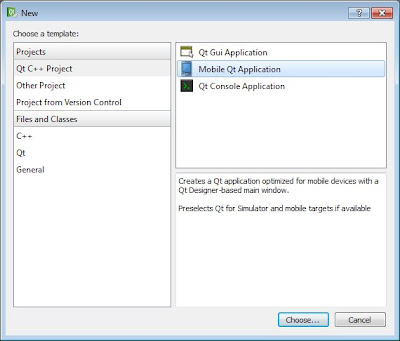
Select Qt C++ Project and Mobile Qt Application, click Choose...

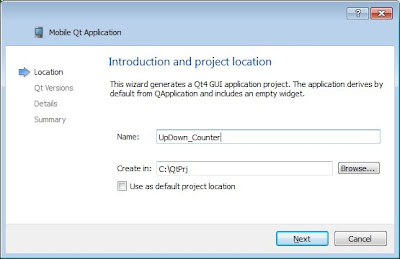
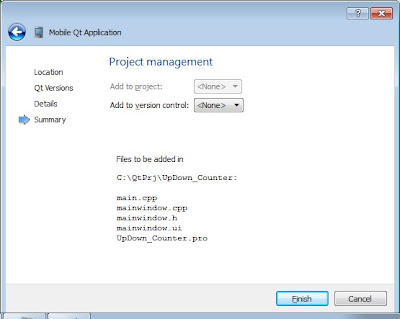
Enter name of the project, eg. UpDown_Counter, and click Next.

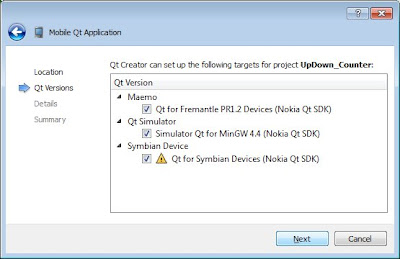
Accept to select all the targets for the project, click Next.
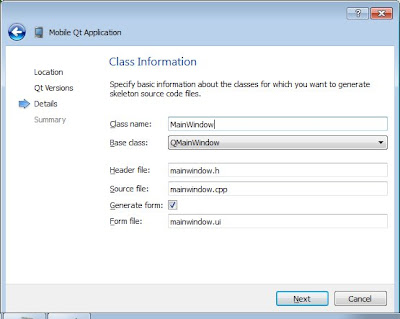
Review and accept the class information, click Next, then Finish.

- Place the UI elements.
The Design mode will be opened after the project files generated automatically.

Place a Label and four Push Button as the picture below.

Change the objectName and text of the UI elements:
label: Counter, with text "0".
Push Button: pushButtonUp, with text "Up".
Push Button: pushButtonDown, with text "Down".
Push Button: pushButtonClear, with text "Clear".
Push Button: pushButtonQuit, with text "Quit".
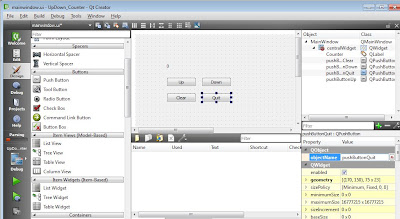
Place UI elements

- Run the Application with UI elements only
Now, you can Save All and Run the application.
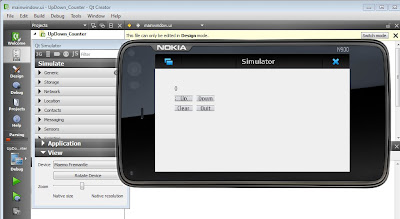
Dummy UI elements on the screen

Up to now, we have place the elements on the screen without any function. The function will be added in comming articles.

Sunday, June 27, 2010

Hello Symbian on Nokia N95

OS: Windows 7
Development Tools: Nokia Qt SDK 1.0
Symbian device: Nokia N95 (It have to be pre-installed the required software as described in the article "Install Qt Software to Symbian device")

- Start Qt Creator

- Click File -> New File or Project...

- Select Qt C++ Project > Mobile Qt Application, click Choose...


- Enter your project name, eg. HelloSymbian, and location to create. Click Next.


- Accept the default selection to select all targets. Click Next.


- Accept the Class Information by clicking Next, then Finish.


Qt Creator create the files of the project for you. mainwindow.ui will be opened in Design mode automatically.

- Click on the MainWindow on the middle of the screen. The properties will be shown on the bottom-right. Change Width and Height of geometry to 240 and 320, it's the resolution of Nokia N95. The graph of the MainWindow will be changed accordingly.


- Drag a Label from the Widgets list to the MainWindow, resize it and type anything you want, say "Hello Symbian".


- Click File and Save All of your works.

- Click Build -> Build All

Run on true device

- Click on the device icon on the left and select Symbian Device.
Note that There is a red cross over the phone icon, because there are no Symbian device connected.


- Connect a Symbian device, it's N95 in my case, to PC via USB cable.

- Run the TRK application on the phone.

- The phone icon will changed to have green tick.Click it and wait.


- After a moment, your first Hello Symbian will be installed and run on your Symbian phone.
Hello Symbian run on N95
- Finished.

Saturday, June 26, 2010

Install Qt Software to Symbian device

In the new released Nokia Qt SDK, you can develope Qt application, deploy and run Qt applications on the Symbian device inside Qt Creator.

In order to deploy and run Qt applications on the Symbian device, the following software have to be installed on your Symbian device: Qt to Symbian device, QtMobility to Symbian device and TRK to Symbian device.

Installing Required Applications on Devices

The Nokia Qt SDK installation program creates shortcuts for installing the required applications on Symbian devices (you can also use any of the standard methods for installing applications on devices):


  1. Connect the device to the development PC with an USB cable in PC Suite Mode. If you have not previously used the device with Ovi Suite or PC Suite, all the necessary drivers are installed automatically. This takes approximately one minute.
  2. Choose Start > Nokia Qt SDK > Symbian > Install Qt to Symbian device and follow the instructions on the screen to install Qt 4.6.2 libraries on the device.
  3. Choose Start > Nokia Qt SDK > Symbian > Install QtMobility to Symbian device and follow the instructions on the screen to install Qt mobility libraries on the device.
  4. Choose Start > Nokia Qt SDK > Symbian > Install TRK to Symbian device and follow the instructions on the screen to install the TRK debugging application on the device.

    Note: To check the Symbian platform version of your device, see Device Details.

Note: If errors occur during the installation, copy the .sis files from \Symbian\sis to the device using USB storage mode. Then install them from the file manager on the device.

Building and Running Applications

You can test your application on a device by building and running it from Qt Creator for the Symbian Device target.

  1. Connect the device to the development PC through a USB cable. The target selector displays a green check mark when a device is connected.


    The tool tip of the target selector shows more details about the actual device that will be used when you run your application.

  2. Start the App TRK application on your device and deny the Bluetooth connection.
  3. Select Options to select USB as connection type.
  4. Click the Run button in Qt Creator.

Friday, June 25, 2010

Nokia Smart Installer for Symbian

Nokia Smart Installer for Symbian (or Smart Installer for short) is a deployment solution that ensures that installed 3rd party applications have always access to the required versions of their dependent libraries.

Nokia Smart Installer for Symbian v1.0

Nokia Smart Installer for Symbian is a deployment solution designed to ensure that although packaged in a small installer kit (*.sis file) an application can be deployed on a supported Symbian device which doesn't yet have the required add-on libraries. These libraries will be download and installed only when the installer detects that they are needed or that they should be upgraded. In particular this solution provides support for distributing Qt applications without embedding the large Qt libraries in the distribution package.

Nokia Qt SDK 1.0 Released

Nokia Qt SDKThe Nokia Qt SDK 1.0 for Symbian and Maemo/MeeGo development on Nokia devices is now available.


The Nokia Qt SDK 1.0 is available, and it offers a true cross-platform development environment allowing developers to create applications for both Symbian and Maemo devices. Installation is easy, as it only requires one installation package that downloads all of the Qt and Symbian/Maemo components that developers need using the same Qt Creator 2.0 as standard Qt SDK’s for use on Windows, Linux and Mac (beta).

The Nokia Qt SDK 1.0 includes the Qt 4.6 libraries plus additional API’s for mobile development. With a fast, new simulator along with on-device debugging and the ability to compile to both .sis (Symbian) or .deb (Maemo) packages, it provides developers with a great opportunity to start creating amazing apps right away.

Wednesday, June 9, 2010

Qt Creator 2.0: It’s a Release Candidate!

Qt Creator 2.0 Released Candidate! Creator works hand-in-hand with the Nokia Qt SDK, a release candidate of which has also been released today. One effect is that debugging on the Nokia N8, the first Symbian-based Nokia phone shipping with Qt, does now work. Another focus of this release is the documentation, which has been greatly improved to cover a lot more aspects of Qt Creator and how to develop with it.

But: Qt Quick support is now disabled by default, because Qt 4.7 will not be out by the time Nokia want to release Qt Creator 2.0. This means Qt Creator will come without Qt Quick functionality, even though loading Qt Quick files and projects is still possible. After 2.0 has been released, Nokia will bring back Qt Quick enabled nightly build as soon as possible.

read in more details: Qt Labs Blogs >> Qt Creator 2.0: It's a Release Candidate!