Sunday, July 18, 2010

QMessageBox with decision making

QMessageBox can also be used to show information to the user, and the user have to make a decision; such as the confirm to quit dialog.

- Create one more button on the form using Qt Designer. Right click on the button and select Go to Slot...


- Select clicked()


- Add the code

QString text = QObject::tr("Are you sure to quit?");
QMessageBox msgBox(QObject::tr("Quit"), text, QMessageBox::Warning, QMessageBox::Yes|QMessageBox::Default, QMessageBox::No|QMessageBox::Escape, QMessageBox::NoButton);
if (msgBox.exec() == QMessageBox::Yes)
{
close();
}


QMessageBox with decision making

Friday, July 9, 2010

Simple QMessageBox

In the last exercise "A simple PushButton to quit, built as a Qt Gui Application", the app was generate in Qt Designer without any coding. The signal from the button was connected to close() directly. In this exercise, we will have our slot to display a MessageBox before exit.

In Qt Designed, right click on the button and select Go to Slot...


Select clicked(), and click OK.


The method of MainWindow::on_pushButton_clicked() will be generated automatically.

Insert the code:

void MainWindow::on_pushButton_clicked()
{
QMessageBox msgBox;
msgBox.setText("It's going to Quit!");
msgBox.exec();
}


Save, Build and Run the application.

Thursday, July 8, 2010

Qt Creator 2.0 Manual


Qt Creator provides integrated tools for both application designers and developers to create applications for multiple desktop and mobile device platforms.

For application designers, Qt Creator provides an integrated visual editor, Qt Designer, that you can use to design and develop application user interfaces.

For application developers, Qt Creator provides a cross-platform, complete integrated development environment (IDE) that is available for Linux, Mac OS X and Windows operating systems.

Qt Creator 2.0 Manual

Wednesday, July 7, 2010

A simple PushButton to quit, built as a Qt Gui Application

It have almost the same function of "A simple PushButton to quit" (start from empty Qt project), built as a Qt Gui Aplication, using Qt Designer.

- In Qt Creator, NEW a project by clicking on the File from the menu, then select New File or Project...
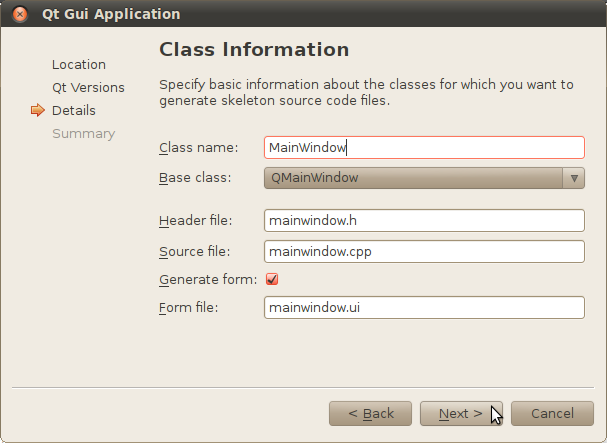
- Select Qt C++ Project in Projects on the left, and Qt Gui Application on the right, click Choose.


- Enter name and location of the project, then click Next, Next, Next and Finish.


Qt Creator will open the GUI in Design mode.

Place UI element
- Drag a Push Button on the main window, double click to edit the text, "Quit".


Specify Signal and Slot
- Click on the Edit Signals/Slots icon or press F4 to switch to Edit Signals/Slots mode.


- Pull a connection from the Push Button onto the background.


- A Configure Connection dialog will be opened. Click to show signals and slots inherited from QWidget. Select clicked() signal from pushButton, and close() slot from MainWindow, then click OK.


Now you can save, build and run your application.

A simple PushButton to quit

A simple PushButton to quit

#include <QtGui>

int main(int argc, char* argv[])
{
QApplication app(argc, argv);

QWidget* mainwindow = new QWidget();
QPushButton* buttonQuit = new QPushButton("Quit", mainwindow);

QVBoxLayout* mainlayout = new QVBoxLayout();
mainlayout->addWidget(buttonQuit);

QObject::connect(buttonQuit, SIGNAL(clicked()), &app, SLOT(quit()));

mainwindow->setLayout(mainlayout);
mainwindow->show();
return app.exec();
}


This is a qmake-base project start from a Empty Qt Project. All jobs are done in software coding. In the next article "A simple PushButton to quit, built as a Qt Gui Application", it will be shown that how to do the same by starting from a Qt Gui Application.

Tuesday, July 6, 2010

Define custom signals and slots

Same effect of the last exercise "signals and slots". In this exercise we create a new class, InterClass, with custom signals and slots. In main.cpp, the emited signals will be sent to the InterClass and re-direct to the receiver.
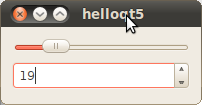
custom signals and slots

create a new class, InterClass.

interclass.h

#ifndef INTERCLASS_H
#define INTERCLASS_H

#include <QtGui>
#include <QObject>

class InterClass : public QObject
{
Q_OBJECT
public:
explicit InterClass(QObject *parent, QSlider *slider, QSpinBox *spinBox);

signals:
void spinBoxValueChanged(int value);
void sliderValueChanged(int value);
public slots:
void setValue(int value);

private:
QSlider *parentSlider;
QSpinBox *parentSpinBox;

};

#endif // INTERCLASS_H


interclass.cpp

#include <QtGui>
#include "interclass.h"

InterClass::InterClass(QObject *parent, QSlider *slider, QSpinBox *spinBox) :
QObject(parent)
{
parentSlider = slider;
parentSpinBox = spinBox;
QObject::connect(this, SIGNAL(sliderValueChanged(int)), parentSpinBox, SLOT(setValue(int)));
QObject::connect(this, SIGNAL(spinBoxValueChanged(int)), parentSlider, SLOT(setValue(int)));
}

void InterClass::setValue(int value)
{
if((QObject::sender()) == parentSlider){
emit sliderValueChanged(value);
}
else{
emit spinBoxValueChanged(value);
}
}


main.cpp

#include <QtGui>
#include "interclass.h"

int main(int argc, char* argv[])
{
QApplication app(argc, argv);

QWidget* mainwindow = new QWidget();
QVBoxLayout* mainlayout = new QVBoxLayout();

QSlider* slider = new QSlider(Qt::Horizontal, mainwindow);
slider->setRange(0, 100);

QSpinBox* spinBox = new QSpinBox(mainwindow);
spinBox->setRange(0, 100);

InterClass* interClass = new InterClass(mainwindow, slider, spinBox);

QObject::connect(slider, SIGNAL(valueChanged(int)), interClass, SLOT(setValue(int)));
QObject::connect(spinBox, SIGNAL(valueChanged(int)), interClass, SLOT(setValue(int)));

mainlayout->addWidget(slider);
mainlayout->addWidget(spinBox);

mainwindow->setLayout(mainlayout);
mainwindow->show();
return app.exec();
}


signals and slots

In the last exercise "Slider and SpinBox", the slider and spinBox have no relationship at all. Here, we are going to add connect between them. When any one of the slider and the spinBox value changed, it will send a SLOT of valueChanged to the SLOT of the other, and update its value.


#include <QtGui>

int main(int argc, char* argv[])
{
QApplication app(argc, argv);

QWidget* mainwindow = new QWidget();
QVBoxLayout* mainlayout = new QVBoxLayout();

QSlider* slider = new QSlider(Qt::Horizontal, mainwindow);
slider->setRange(0, 100);

QSpinBox* spinBox = new QSpinBox(mainwindow);
spinBox->setRange(0, 100);

QObject::connect(slider, SIGNAL(valueChanged(int)), spinBox, SLOT(setValue(int)));
QObject::connect(spinBox, SIGNAL(valueChanged(int)), slider, SLOT(setValue(int)));

mainlayout->addWidget(slider);
mainlayout->addWidget(spinBox);

mainwindow->setLayout(mainlayout);
mainwindow->show();
return app.exec();
}


next: Define custom signals and slots